With the latest update of Microsoft Windows 11 (24H2), Recall was added. It is not enabled by default, but knowing how to disable it might be useful in the future.
Article Contents
- What is Recall?
- Why I don't like it
- What version of windows am I running?
- How to make sure that Recall is disabled
TLDR
This is how to check, disable and enable Recall using commandline (in admin mode):
Dism /Online /Get-Featureinfo /Featurename:Recall
Dism /Online /Disable-Feature /Featurename:Recall
Dism /Online /Enable-Feature /Featurename:Recall
What is Recall?
Recall is a feature to be introduced in Windows 11 that uses AI to track and analyze your daily computer activities, including the apps you use, the documents you work with, and your general usage patterns. It's designed to help you quickly find and resume your previous activities by creating a searchable timeline of your work.
The feature works by continuously monitoring your system interactions, storing this information locally, and using AI to identify patterns and connections between different activities to make them easily accessible later.
Why I don't like it
The privacy implications of Recall are concerning, as it essentially creates a detailed digital diary of everything you do on your computer. While Microsoft maintains that the data is stored locally, the mere existence of such comprehensive activity tracking raises serious privacy concerns. The feature records not just what applications you use, but also tracks the content you interact with and how you use it, creating an uncommonly detailed profile of your computer usage.
Furthermore, having AI constantly analyze your work patterns feels intrusive, almost like having someone constantly looking over your shoulder. Even if this data isn't being shared, the principle of having every action logged and analyzed goes against the basic concept of digital privacy. There's also the question of data security – while the information is stored locally, any feature that collects such detailed usage data could potentially become a target for malware or other security threats seeking to gather user behavior information.
Adding to these concerns is the uncertainty around Windows' update behavior. While Microsoft states that Recall is disabled by default in current Windows 11 installations, this provides little long-term assurance. Windows updates have a history of resetting user preferences or introducing new default settings, and there's no guarantee that future updates won't enable this feature automatically. This uncertainty compounds the privacy issues already mentioned – users shouldn't have to regularly check their privacy settings to ensure they're not being inadvertently tracked. Even more concerning is that many users might not even be aware of the feature's existence, potentially leading to unintended data collection if it were to be enabled through an update.
What version of windows am I running?
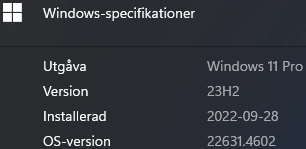
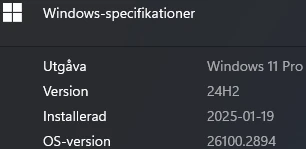
This is easy to check - simply right-click My Computer on the desktop and select properties. You will find the edition and version under windows-specifications. The images below are from a Swedish version of the OS.
How to make sure that Recall is disabled
One easy way to do this is to use the commandline. Press the windows button and type CMD, then press CTRL+SHIFT+ENTER (this will open up CMD in admin mode). Admin mode is required for this operation. The following list shows 3 commands to check, disable or enable the feature:
Dism /Online /Get-Featureinfo /Featurename:Recall
Dism /Online /Disable-Feature /Featurename:Recall
Dism /Online /Enable-Feature /Featurename:Recall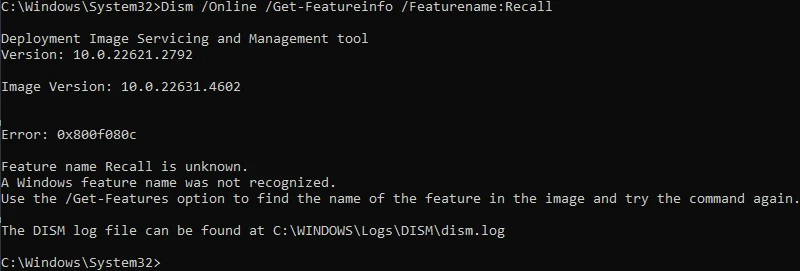 Recall is not installed
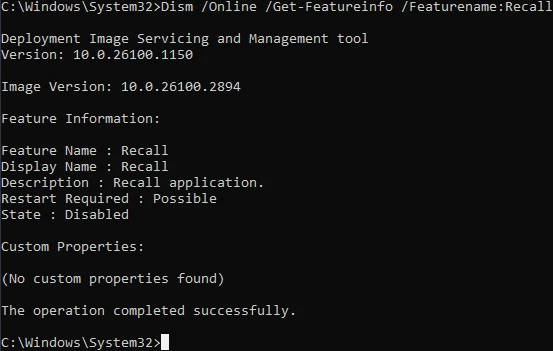 Recall is installed and disabled
So there you have it. I will make sure that Recall is disabled on all my computers where I work with sensitive data, and this is one way to do it. If Microsoft make changes to how this feature works, I will try to make sure that the feature remains disabled.